ドラッグ&ドロップ

Wikipedia: In computer graphical user interfaces, drag-and-drop is the action of (or support for the action of) clicking on a virtual object and dragging it to a different location or onto another virtual object. In general, it can be used to invoke many kinds of actions, or create various types of associations between two abstract objects.

ウィキペディア:

ドラッグ・アンド・ドロップ (英語: drag-and-drop; 「ひきずって、手放す」の意) とは、画面上の仮想的な物体を移動するためのグラフィカルユーザインタフェース上の操作の一つである。 二つの物体を関連させた様々な動作を行うために使われる。

Drag and drop functionality is one of the most visible aspects of the graphical user interface. Drag and drop operation enables you to do complex things intuitively.

ドラッグ&ドロップは、グラフィカルユーザインターフェースの中で最も視覚的な機能の一つです。 ドラッグ&ドロップによって、複雑な操作を直感的に行えるようになります。

In drag and drop we basically drag some data from a data source to a data target. So we must have:

ドラッグ&ドロップでは、基本的に何らかのデータを移動元から移動先へ運びます。つまり、ドラッグ&ドロップには以下の3つが必要なのです。

wxPythonでは、2つの定義済みデータターゲットがあります。 wx.TextDropTarget と wx.FileDropTarget です。

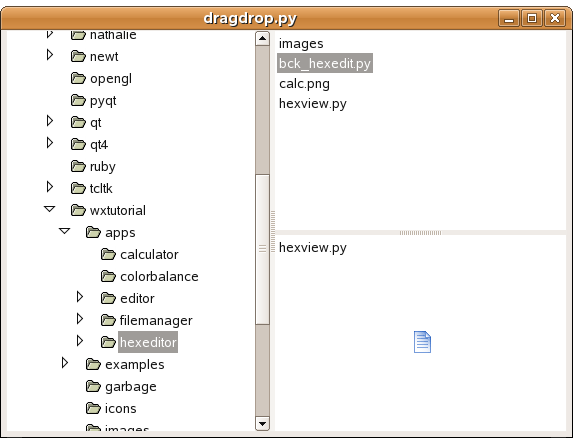
DONE wx.TextDropTarget

./img/dragdrop.png

#!/usr/bin/env python

import os
import wx

class MyTextDropTarget(wx.TextDropTarget):
    def __init__(self, object):
        wx.TextDropTarget.__init__(self)
        self.object = object

    def OnDropText(self, x, y, data):
        self.object.InsertStringItem(0, data)

class DragDrop(wx.Frame):
    def __init__(self, parent, id, title):
        wx.Frame.__init__(self, parent, id, title, size=(650, 500))

        splitter1 = wx.SplitterWindow(self, -1, style=wx.SP_3D)
        splitter2 = wx.SplitterWindow(splitter1, -1, style=wx.SP_3D)
        self.dir = wx.GenericDirCtrl(splitter1, -1, dir='/home/', style=wx.DIRCTRL_DIR_ONLY)
        self.lc1 = wx.ListCtrl(splitter2, -1, style=wx.LC_LIST)
        self.lc2 = wx.ListCtrl(splitter2, -1, style=wx.LC_LIST)

        dt = MyTextDropTarget(self.lc2)
        self.lc2.SetDropTarget(dt)
        self.Bind(wx.EVT_LIST_BEGIN_DRAG, self.OnDragInit, id=self.lc1.GetId())

        tree = self.dir.GetTreeCtrl()

        splitter2.SplitHorizontally(self.lc1, self.lc2)
        splitter1.SplitVertically(self.dir, splitter2)

        self.Bind(wx.EVT_TREE_SEL_CHANGED, self.OnSelect, id=tree.GetId())

        self.OnSelect(0)
        self.Centre()
        self.Show(True)

    def OnSelect(self, event):
        list = os.listdir(self.dir.GetPath())
        self.lc1.ClearAll()
        self.lc2.ClearAll()
        for i in range(len(list)):
            if list[i][0] != '.':
                self.lc1.InsertStringItem(0, list[i])

    def OnDragInit(self, event):
        text = self.lc1.GetItemText(event.GetIndex())
        tdo = wx.TextDataObject(text)
        tds = wx.DropSource(self.lc1)
        tds.SetData(tdo)
        tds.DoDragDrop(True)

app = wx.App()
DragDrop(None, -1, 'dragdrop.py')
app.MainLoop()

DONE wx.FileDropTarget

One of the advantages of the GUI over the console is it's intuitiveness. You can learn a GUI program easier than a console application. You often do not need a manual. On the other hand, some graphical operations are too complex. For example, deleting a file by dragging it and droping it to the trash basket is very intuitive and easy to understand, but actually most people just press the delete key. (shift + delete) It is more effective. In our next example we explore a graphical operation, that is very handy. In most GUI text editors, you can open a file by simply dragging it from the file manager and dropping it on the editor.

GUIは直感的であるという点で、コンソールより優れています。 GUIプログラムはコンソールアプリケーションよりも簡単に学ぶことができます。 時としてマニュアルすら必要ありません。 逆に、グラフィカルな操作は複雑になりすぎることもあります。 たとえば、ファイルをゴミ箱にドラッグ&ドロップして削除するのは非常に直感的であり理解しやすいです。しかし、実際には多くの人たちはDeleteキーを押すだけです。 Shift + Delete はより効果的です。 次の例では、グラフィカルな操作について探検しましょう。これらは大変役に立ちます。 多くのGUIテキストエディタでは、ファイルマネージャからエディタ上にドラッグ&ドロップするだけでファイルを開くことができます。

#!/usr/bin/env python

import wx

class FileDrop(wx.FileDropTarget):
    def __init__(self, window):
        wx.FileDropTarget.__init__(self)
        self.window = window

    def OnDropFiles(self, x, y, filenames):
        for name in filenames:
            try:
                file = open(name, 'r')
                text = file.read()
                self.window.WriteText(text)
                file.close()
            except IOError, error:
                dlg = wx.MessageDialog(None, 'Error opening file\n' + str(error))
                dlg.ShowModal()
            except UnicodeDecodeError, error:
                dlg = wx.MessageDialog(None, 'Cannot open non ascii files\n' + str(error))
                dlg.ShowModal()

class DropFile(wx.Frame):
    def __init__(self, parent, id, title):
        wx.Frame.__init__(self, parent, id, title, size=(450, 400))
        
        self.text = wx.TextCtrl(self, -1, style=wx.TE_MULTILINE)
        dt = FileDrop(self.text)
        self.text.SetDropTarget(dt)
        self.Centre()
        self.Show(True)

app = wx.App()
DropFile(None, -1, 'filedrop.py')
app.MainLoop()

The original page is here.
Date: 2010-10-21 06:20:10 JST

HTML generated by org-mode 6.21b in emacs 23